09:45–10:20
1. Kopi Run: your first agent in five minutes
Rush hour. Twenty orders, twenty isolated sessions, nothing to provision.
The brief
Kopi Run is the app your office uses for the morning drinks run to Block 88 Kopitiam. People pick drinks from a menu, someone collects, and the app splits the bill. It works, but nobody likes the form.
The ops lead wants people to just say what they want: "3 kopi-o siew dai, 1 teh peng gao, and whatever Marcus had last time." There's no agent team and no time to build one. The API already exists. Can you have an agent taking orders before the 10:20 break?
What you'll learn
An agent on AgentCore can be nothing more than a model, a system prompt and a list of tools. By the end of this scenario you'll be able to:
- Define an agent as configuration (model, prompt, tools and limits) with the AgentCore harness, without writing an agent loop.
- Turn an API you already have, here a Lambda function, into tools any agent can call through AgentCore Gateway.
- Read a trace to see exactly what the agent sent to a tool, and spot a bug that lives in the tool schema rather than the code.
- Fix the agent's behaviour with a config change and a redeploy.
- Watch AgentCore Runtime run twenty isolated sessions side by side with nothing to provision.
- Use Memory to remember a person across conversations, and tell when a tool is the better place for the facts.
AgentCore pieces: Harness, Runtime, Gateway, Memory, Observability
You'll leave with: a working ordering agent defined in a few lines of config, which you can redeploy, roll back, or export to Strands Agents code.
Time: 35 minutes. Before you start: finish the setup page, with check-setup.sh passing.
Where the steps differ, you'll see Console and Terminal tabs. Pick whichever you're comfortable with. The guide remembers your choice on every page, and you can switch at any time from the sidebar.
Look at what the agent will be given
Start by reading what the agent will be given. The whole agent definition is a system prompt and a list of tools.
Read the system prompt and the place_order tool below. You'll paste the prompt and the full tool list into the console in the next two steps.
Both files live in the repo, so you can read them there:
cat $WORKSHOP/kopi-run/system-prompt.md &&
cat $WORKSHOP/kopi-run/tools.json
The system prompt tells the model what job it's doing and how to read kopi orders:
You take kopi and teh orders for an office in Singapore. Orders go on
today's run to Block 88 Kopitiam.

How to order
- Use get_menu to check a drink exists and what it costs before you order it.
- Use place_order once per drink type, under the name of the person it is for.
- If someone asks for "what X had last time", use get_order_history for X.
  Do not guess.
- After ordering, use get_run and read back exactly what is on the run and
  the total.

Kopi and teh words
- kopi: coffee with condensed milk. teh: tea with condensed milk.
- o: no milk. c: evaporated milk.
- kosong: no sugar. siew dai: less sweet. ka dai: extra sweet.
- gao: strong. po: weak. peng: iced.
For example, "kopi-o siew dai peng" is iced black coffee, less sweet.

If a drink is not on the menu, say so and suggest the closest one.
Never invent prices.
There are four tools: get_menu, place_order, get_order_history and get_run. The model reads every name, description and inputSchema on every turn. The schema decides what shape the arguments arrive in. Take a close look at place_order in particular:
{
  "name": "place_order",
  "description": "Add drinks to today's run for one person. If that person already has the same drink on the run, the quantity is added to it.",
  "inputSchema": {
    "type": "object",
    "properties": {
      "person":   { "type": "string", "description": "First name of the person the drinks are for" },
      "drink":    { "type": "string", "description": "Full drink name, for example kopi-o siew dai peng" },
      "quantity": { "type": "string", "description": "How many" }
    },
    "required": ["person", "drink", "quantity"]
  }
}
The tools themselves are implemented by a Lambda function that's already in your account, called agentcore-workshop-kopi-api. You won't change it today.
Put the Kopi Run API behind a Gateway
What is AgentCore Gateway, and why use it?
Your agent needs tools, and your tools are usually APIs and Lambda functions you already have. Gateway sits between the two. It turns Lambda functions, OpenAPI and Smithy APIs into tools that speak the Model Context Protocol (MCP), the open standard agents use to find and call tools, and puts them all behind one endpoint.
Why not let the agent call your API directly? Three reasons you'll see today:
- One place for authentication. Gateway checks who is calling (inbound) and handles the credentials each tool needs (outbound), so you aren't wiring keys into every agent.
- Change a tool once. Fix or add a tool on the Gateway and every agent connected to it picks up the change, with no agent code to touch. You'll do this twice today.
- A place to put rules. Policy attaches to a Gateway and checks every tool call before it reaches your API. That's the Tally scenario.
It's serverless, so there's nothing to size or patch, and it scales with demand.
Sources: AgentCore Gateway, Model Context Protocol
First, you'll need the Lambda function's ARN. Run this in the code editor terminal and copy what it prints:
echo $KOPI_API_ARN
Open the Amazon Bedrock AgentCore console. Check the region is Asia Pacific (Singapore).
Choose Gateways in the navigation pane, then Create Gateway. A four-step wizard opens.
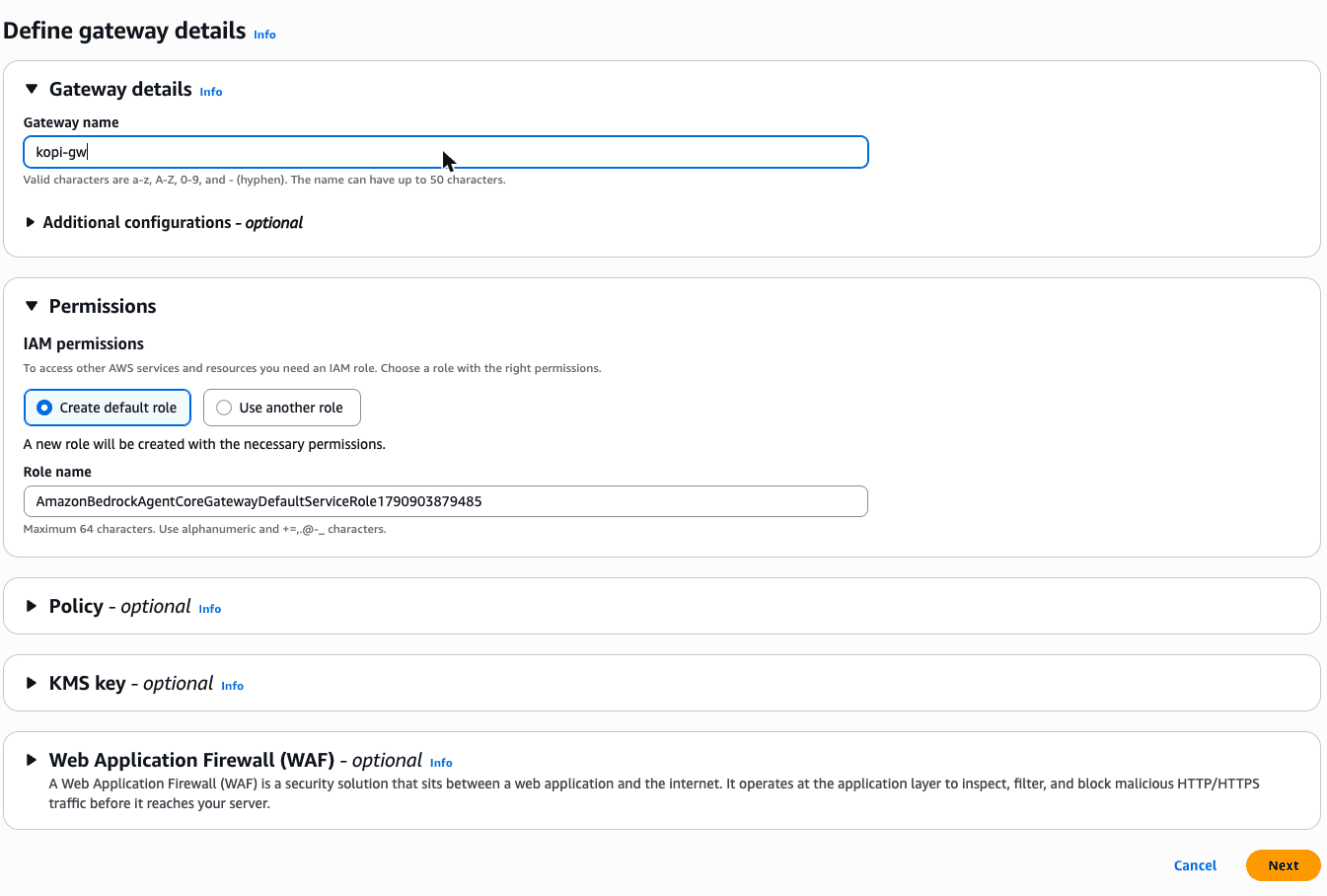
Step 1, Define gateway details. The name box is filled with a generated name. Replace it with
kopi-gw. Under Permissions, leave Create default role selected. Choose Next.Screenshot: Define gateway details
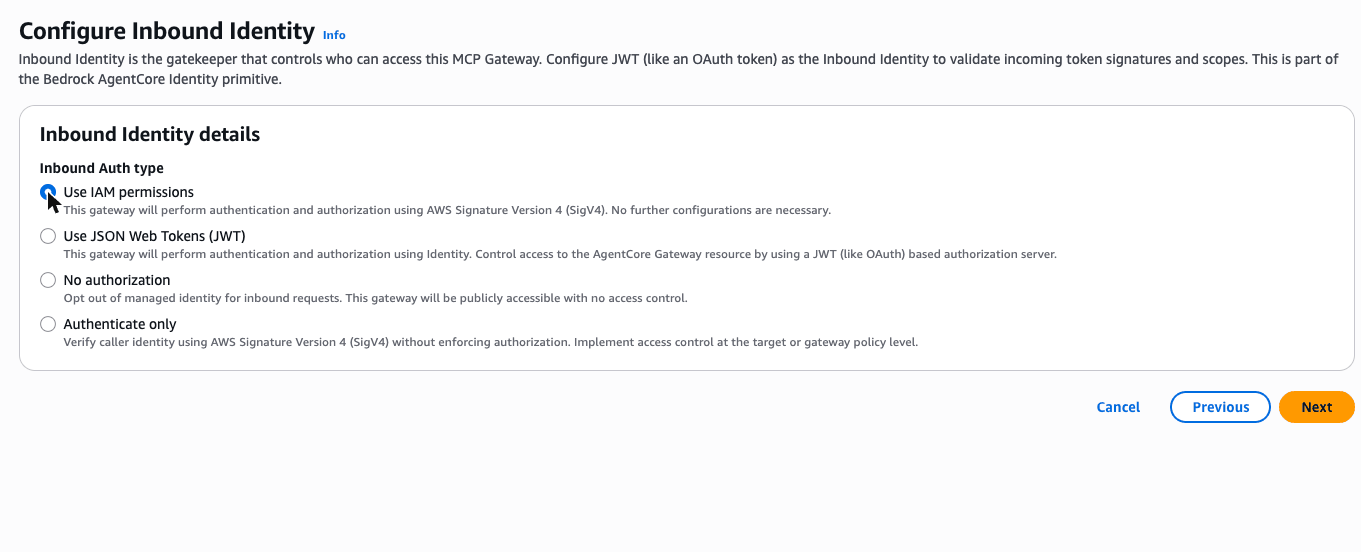
Step 2, Configure Inbound Identity. The default is JSON Web Tokens. Change Inbound Auth type to Use IAM permissions. Choose Next.
Screenshot: Configure Inbound Identity
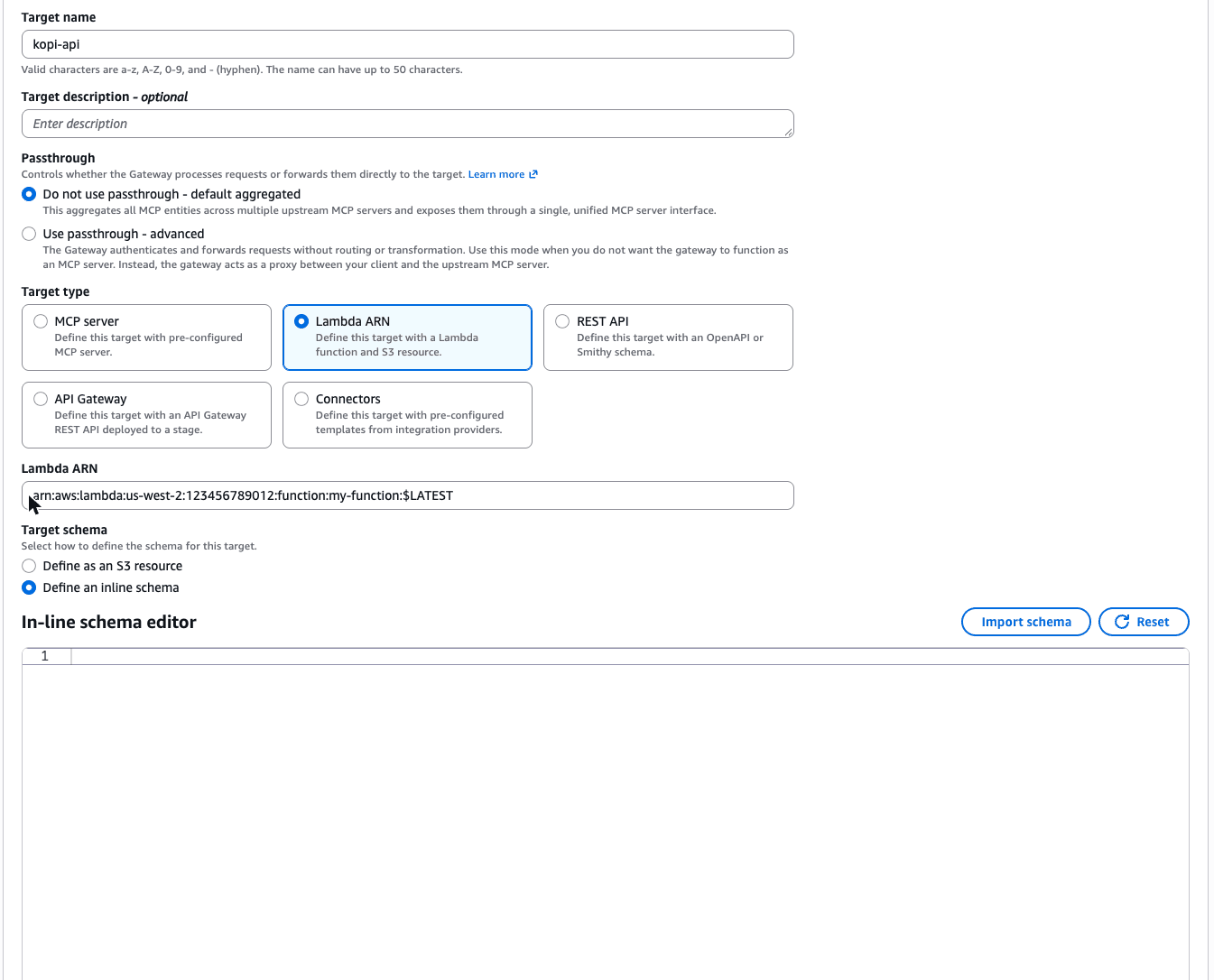
Step 3, Add targets. Leave the protocol as MCP target. Replace the generated Target name with
kopi-api. Set Target type to Lambda ARN and paste the ARN you copied into Lambda ARN. Under Target schema, choose Define an inline schema and paste the full tool list below into the editor. Leave Outbound Auth as IAM Role. Choose Next.Screenshot: Add targets
Step 4, Review and create. Check the details and create the gateway. Wait until its status says Ready.
Full tool list to paste
[
  {
    "name": "get_menu",
    "description": "List the drinks on today's menu at Block 88 Kopitiam, with prices in SGD.",
    "inputSchema": { "type": "object", "properties": {} }
  },
  {
    "name": "place_order",
    "description": "Add drinks to today's run for one person. If that person already has the same drink on the run, the quantity is added to it.",
    "inputSchema": {
      "type": "object",
      "properties": {
        "person":   { "type": "string", "description": "First name of the person the drinks are for" },
        "drink":    { "type": "string", "description": "Full drink name, for example kopi-o siew dai peng" },
        "quantity": { "type": "string", "description": "How many" }
      },
      "required": ["person", "drink", "quantity"]
    }
  },
  {
    "name": "get_order_history",
    "description": "Get a person's recent orders, newest first.",
    "inputSchema": {
      "type": "object",
      "properties": { "person": { "type": "string", "description": "First name" } },
      "required": ["person"]
    }
  },
  {
    "name": "get_run",
    "description": "Show everything on today's run: who ordered what, quantities and the total.",
    "inputSchema": { "type": "object", "properties": {} }
  }
]
Start by creating an AgentCore project, then add the gateway and its target:
cd $WORKSHOP &&
agentcore create --project-name KopiRun --no-agent &&
cd KopiRun &&
agentcore add gateway --name kopi-gw --authorizer-type AWS_IAM &&
agentcore add gateway-target \
  --type lambda-function-arn \
  --name kopi-api \
  --lambda-arn "$KOPI_API_ARN" \
  --tool-schema-file "$WORKSHOP/kopi-run/tools.json" \
  --gateway kopi-gw &&
agentcore deploy -y
A project is a folder that describes AgentCore resources. agentcore/agentcore.json lists them, and agentcore/cdk/ holds the infrastructure code the CLI generates for you. --no-agent gives you an empty project so you can add the pieces one at a time. Nothing exists in AWS until you deploy, and the last command deploys the Gateway straight away: the agent you define next needs to look the Gateway up, so it has to exist first. It takes a minute or two.
Gateway gives the Lambda function an MCP endpoint and publishes the tools. Agents see them with the target name in front, so place_order becomes kopi-api___place_order. IAM inbound auth means every caller has to sign its requests with AWS credentials. The harness does that for you using its own IAM role.
Define the agent
What is the AgentCore harness, and why use it?
Every agent has a loop: call the model, pick a tool, pass the result back, repeat, and recover when something fails. Running that loop for real users also needs compute, isolation between users, memory, identity and tracing. AWS calls the whole package the agent harness.
The managed harness turns all of that into configuration. You declare the model, system prompt, tools and limits; AgentCore provides the environment, compute, memory, identity and observability. Each session runs in its own microVM on AgentCore Runtime. Trying another model or adding a tool is a config change, and each change becomes a new version you can roll back to.
There's no separate charge for the harness itself: you pay for the AgentCore pieces it uses. When configuration stops being enough, you can export a harness to Strands Agents code and keep going.
Sources: AgentCore harness, AgentCore pricing
In the AgentCore console, choose Harness in the navigation pane. Open the arrow on the Quick create Harness button and choose Advanced create Harness. You need the advanced form to add a tool and a limit.
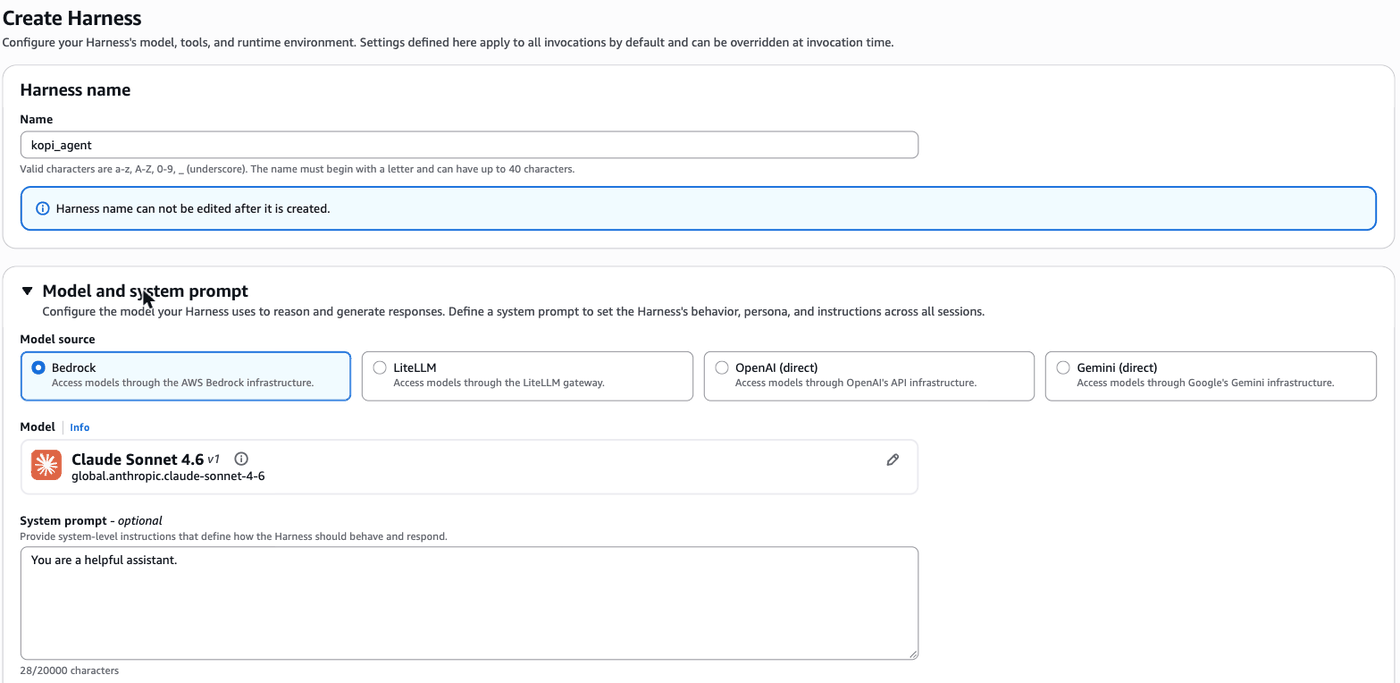
Name: replace the generated name with
kopi_agent. Harness names allow letters, numbers and underscores only, and can't be changed later.Model and system prompt: leave Model source as Bedrock and the model as Claude Sonnet 4.6. The System prompt box says You are a helpful assistant. Replace that with the prompt from the first step.
Screenshot: name, model and system prompt
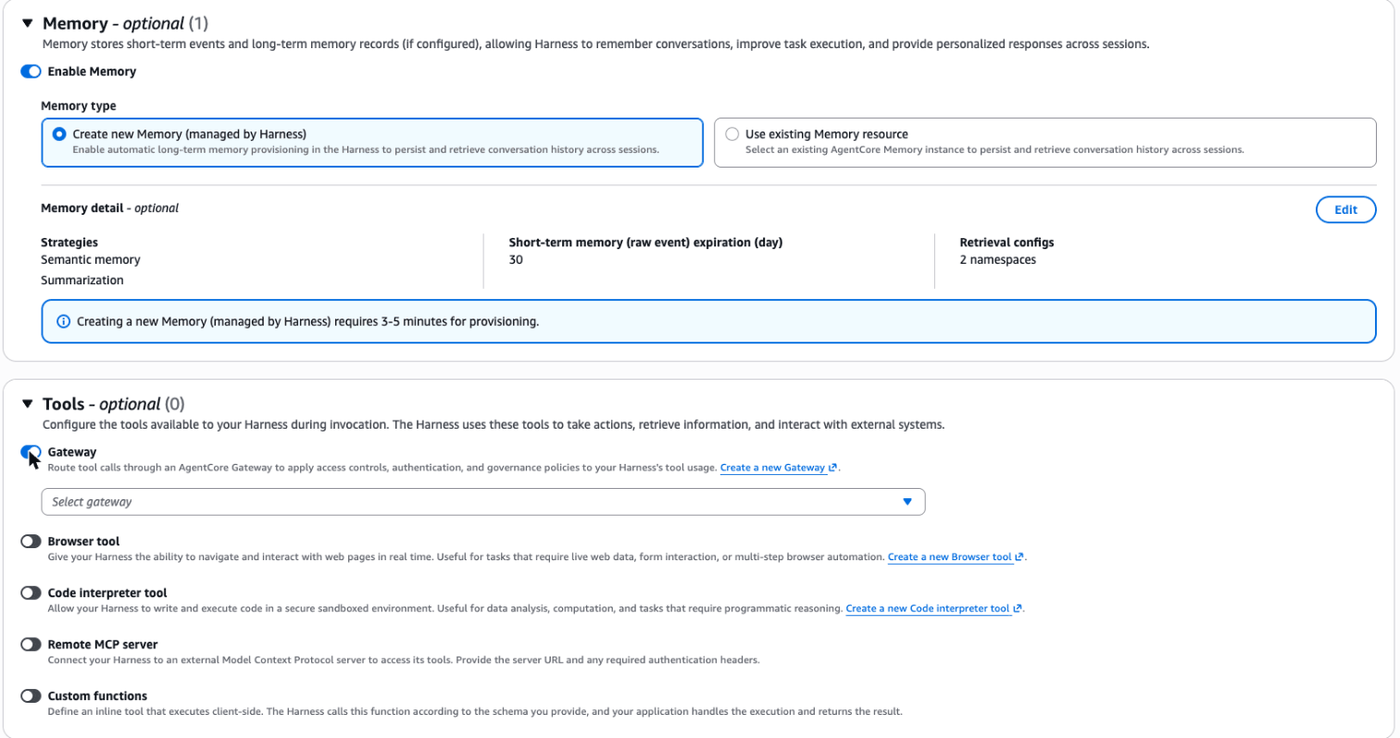
Memory: leave Enable Memory on and Create new Memory (managed by Harness) selected. It uses semantic memory and summarisation, and keeps raw events for 30 days.
Tools: switch on Gateway and choose
kopi-gwfrom Select gateway.Screenshot: memory and tools
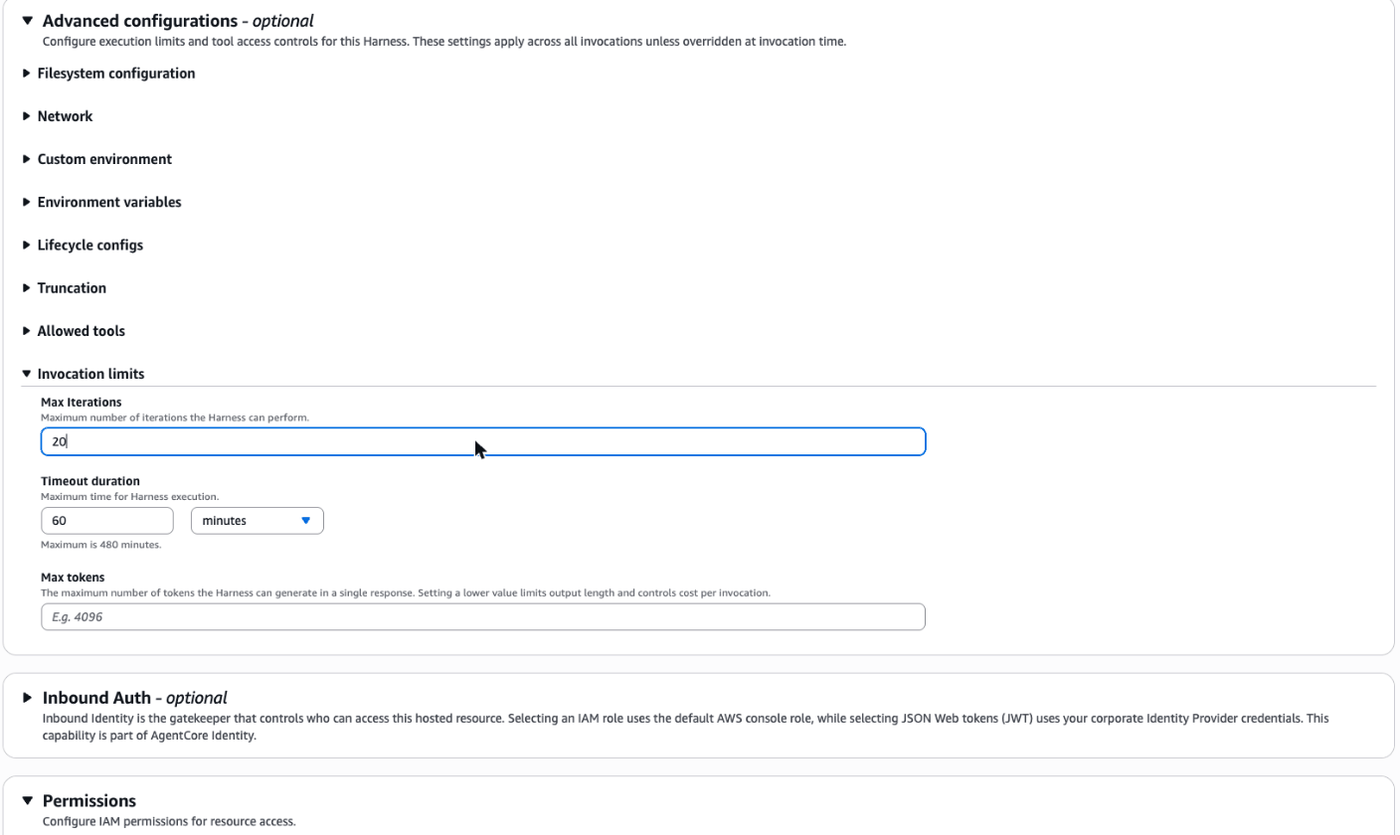
Open Advanced configurations, then Invocation limits, and change Max Iterations from 75 to
20.Screenshot: invocation limits
Permissions: leave Create default role selected.
Hold off on creating it for now, and read the next step first.
agentcore add harness \
  --name kopi_agent \
  --model-provider bedrock \
  --system-prompt "$(cat $WORKSHOP/kopi-run/system-prompt.md)" \
  --max-iterations 20 &&
agentcore add tool --harness kopi_agent --type agentcore_gateway --name kopi --gateway kopi-gw &&
$WORKSHOP/scripts/set-memory.sh kopi_agent &&
cat app/kopi_agent/harness.json
app/kopi_agent/harness.json is your agent: the model, the system prompt, the Gateway tool, the memory setting and the iteration limit. agentcore add harness leaves memory off, so set-memory.sh switches on managed memory (semantic facts and summaries), the same as the console's default. You'll need it for the regulars step at the end.
The default model is Claude Sonnet 4.6 on Amazon Bedrock. A max of 20 iterations caps how many reason-and-act loops a single request can run (the default is 75). It's a cheap guard against a runaway agent.
Deploy
Choose Create Harness. In the console, creating the harness also deploys it. Wait for the status to show Ready. The managed memory takes three to five minutes to provision, so this is a good moment to read the box below.
agentcore deploy -y
This takes three to five minutes the first time. When it finishes, see what was created:
agentcore status
Under the hood: what you just built
The console calls the AgentCore APIs directly. The CLI turns your project into a CDK app and deploys it with CloudFormation, which is what you'd use to keep an agent in Git. Either way you end up with the same things:
| Resource | What it's for |
|---|---|
| The harness | Your agent configuration, stored as version 1, with a DEFAULT endpoint |
| AgentCore Runtime | Where each session runs, in its own isolated microVM with a filesystem and shell |
| Managed Memory | Short-term conversation history and long-term facts per user, kept for 30 days by default |
| Gateway and target | The MCP endpoint in front of your Lambda function, plus the IAM role Gateway uses to call it |
| Execution role | What the harness is allowed to call: the model, Memory, the Gateway, CloudWatch |
| Log groups and traces | Every model call and tool call, sent to CloudWatch |
You wrote none of the orchestration code. Changing the model, the prompt or the tools later is a config edit.
Sources: AgentCore harness, harness versioning and endpoints
Place your first order
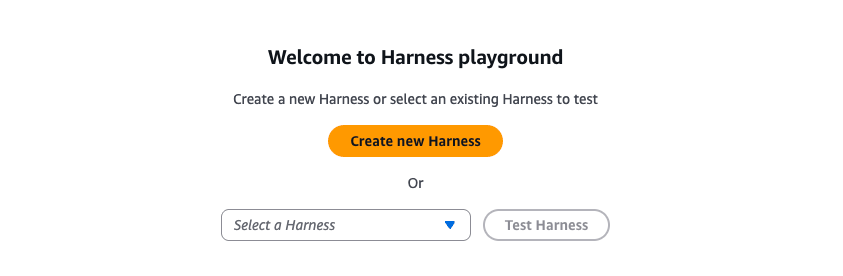
Choose Harness playground under Test in the navigation pane. Pick
kopi_agentfrom Select a Harness and choose Test Harness.Screenshot: Harness playground
Send this message: What's on the menu today?
Then send: Two kopi-o siew dai for me please. I'm Priya.
Finally, ask: What's on today's run?
Each reply shows the tool calls the agent made. Expand one to see what it sent and what came back.
export S1=$(newsession) &&
agentcore invoke --harness kopi_agent --actor-id priya --session-id "$S1" \
  "What's on the menu today?" &&
agentcore invoke --harness kopi_agent --actor-id priya --session-id "$S1" \
  "Two kopi-o siew dai for me please." &&
$WORKSHOP/scripts/kopi.sh run
The actor ID says who's talking. Memory uses it to keep each person's data separate. kopi.sh run reads the run straight from the backend.
A session keeps the conversation together, so the second message knows about the first. A new session starts fresh.
Find the bug
Now the rest of the team wants in on the order.
In the same Playground session, send:
- The team's joining. Add five more kopi-o siew dai under my name.
- What's on today's run?
agentcore invoke --harness kopi_agent --actor-id priya --session-id "$S1" \
  "The team's joining. Add five more kopi-o siew dai under my name." &&
$WORKSHOP/scripts/kopi.sh run
Two plus five should be seven, so check what's actually on the run.
Rather than guessing at the cause, look at what the agent actually sent. In the console path, expand the place_order tool call in the Playground reply. On either path you can also find it in the trace:
- Open CloudWatch. In the navigation pane, expand GenAI Observability and choose Bedrock AgentCore.
- Choose Harnesses, then
kopi_agent, then the most recent session. - Open the latest trace and find the span for
kopi-api___place_order. Look at the tool input.
New traces can take a minute or two to appear, so give it a moment if yours isn't there yet.
Screenshot: Bedrock AgentCore Observability in CloudWatch

If you see the banner about span ingestion, CloudWatch Transaction Search isn't on yet. Check the setup page for details.
Show the answer
The tool input is "quantity": "5", a string. The schema says quantity is a string, so that's what the model sent. The Lambda function adds the new quantity to the existing line without checking the type, and in Python "2" + "5" is "25".
The model did exactly what the schema asked. The bug is in the tool definition.
Fix it with a config change
The fix is the same on both paths: change the quantity property to this:
"quantity": { "type": "integer", "minimum": 1, "maximum": 20, "description": "How many cups" }
- Open Gateways and choose
kopi-gw. Under Targets, selectkopi-apiand choose Edit. - Scroll to Target schema. Make sure Define an inline schema is selected. If the In-line schema editor shows your tool list, replace the
quantityline with the one above. If the editor is empty, choose the whole list below and paste it in instead; it's the same list with the fix already made. - Choose Update target, then wait about a minute for the target to show Ready again.
- In the Playground, start a new session. Order a different drink so the old line doesn't get in the way:
- Two teh peng for me please. I'm Priya.
- Add five more teh peng under my name.
- What's on today's run?
Fixed tool list to paste
[
  {
    "name": "get_menu",
    "description": "List the drinks on today's menu at Block 88 Kopitiam, with prices in SGD.",
    "inputSchema": {
      "type": "object",
      "properties": {}
    }
  },
  {
    "name": "place_order",
    "description": "Add drinks to today's run for one person. If that person already has the same drink on the run, the quantity is added to it.",
    "inputSchema": {
      "type": "object",
      "properties": {
        "person": {
          "type": "string",
          "description": "First name of the person the drinks are for"
        },
        "drink": {
          "type": "string",
          "description": "Full drink name, for example kopi-o siew dai peng"
        },
        "quantity": {
          "type": "integer",
          "minimum": 1,
          "maximum": 20,
          "description": "How many cups"
        }
      },
      "required": [
        "person",
        "drink",
        "quantity"
      ]
    }
  },
  {
    "name": "get_order_history",
    "description": "Get a person's recent orders, newest first.",
    "inputSchema": {
      "type": "object",
      "properties": {
        "person": {
          "type": "string",
          "description": "First name"
        }
      },
      "required": [
        "person"
      ]
    }
  },
  {
    "name": "get_run",
    "description": "Show everything on today's run: who ordered what, quantities and the total.",
    "inputSchema": {
      "type": "object",
      "properties": {}
    }
  }
]
Built it with the CLI and looking in the console?
A CLI-built target keeps its tool list in S3, so the console shows Define as an S3 resource and an empty inline editor. Use the Terminal steps instead; a change made in the console would be undone by your next agentcore deploy.
The project doesn't keep its own copy of the tool list. agentcore/agentcore.json points at $WORKSHOP/kopi-run/tools.json, and every deploy uploads that file for the Gateway. So the fix is: change that file, then deploy.
Make the change and see exactly what it did:
$WORKSHOP/scripts/edit-tools.sh kopi-quantity
(Prefer to do it by hand? Open $WORKSHOP/kopi-run/tools.json in the code editor and replace the quantity block inside place_order with the line above.)
Then deploy and try again on a clean run:
cd $WORKSHOP/KopiRun &&
agentcore deploy -y &&
$WORKSHOP/scripts/kopi.sh reset &&
export S1=$(newsession) &&
agentcore invoke --harness kopi_agent --actor-id priya --session-id "$S1" \
  "Two kopi-o siew dai for me please." &&
agentcore invoke --harness kopi_agent --actor-id priya --session-id "$S1" \
  "Add five more kopi-o siew dai under my name." &&
$WORKSHOP/scripts/kopi.sh run
You should get seven. The schema is the contract the model sees, and fixing it fixed the agent without touching any code. In a real system you'd also validate input in the Lambda function, because other callers won't all respect your schema. The naive merge is in backends/kopi/handler.py if you want to see it.
Send it a rush of orders
Both paths use the terminal for this step
Sending twenty orders at the same moment needs a script, so switch to your code editor tab. The script finds kopi_agent by name, so it works whichever path you built it on.
It's 08:55 and twenty people want their kopi at once. You'll send twenty orders in parallel, each from a different person in a separate session:
$WORKSHOP/scripts/kopi-burst.sh 20 &&
$WORKSHOP/scripts/kopi.sh run
The script starts twenty invocations at the same moment and prints how long each one took. The run should now have twenty new orders.
Then open CloudWatch, choose GenAI Observability, then Bedrock AgentCore, then Harnesses, and choose kopi_agent. You'll see twenty new sessions from the last few minutes, all of which ran side by side.
Under the hood: what you didn't have to build
Each of those sessions ran in its own microVM with its own filesystem and memory, isolated from the other nineteen. AgentCore Runtime started them on demand and shuts each one down after it has been idle for 15 minutes (the default). You didn't size a cluster, set up a load balancer or write scaling rules, and no session can see another session's data.
You pay per second for the CPU and memory each session actually uses. While a session waits on the model or a tool it isn't using CPU, so that time isn't billed as CPU. The rates are on the AgentCore pricing page.
Sources: AgentCore Runtime, Runtime lifecycle settings
Let the agent remember regulars
What is AgentCore Memory, and why use it?
A model doesn't remember anything between calls, so without memory every conversation starts from nothing. AgentCore Memory is a managed store with two layers:
- Short-term memory keeps the turns of the current session, which is why "add five more" made sense earlier.
- Long-term memory pulls facts, preferences and summaries out of conversations and brings them back in later sessions.
Memory is kept per actor (the user the agent is talking to), so one person's preferences don't turn up in someone else's session. You could build this yourself with a database and a summariser; Memory saves you running and tuning that.
Sources: AgentCore Memory
The Playground talks to the agent as you, so on this path you play Marcus yourself.
- Start a new session and send: Hi, I'm Marcus. My usual is a kopi-c kosong peng. Please remember that.
- Long-term memory is extracted in the background, so wait about a minute.
- Start another new session and send: It's Marcus. Put my usual on today's run.
- Start one more new session and order for the team: 3 kopi-o siew dai, 1 teh peng gao, and whatever Marcus had last time.
First, Marcus tells the agent his usual:
export S2=$(newsession) &&
agentcore invoke --harness kopi_agent --actor-id marcus --session-id "$S2" \
  "Hi, I'm Marcus. My usual is a kopi-c kosong peng. Please remember that."
Long-term memory is extracted in the background, so wait about a minute. Then start a brand-new session as Marcus:
export S3=$(newsession) &&
agentcore invoke --harness kopi_agent --actor-id marcus --session-id "$S3" \
  "Put my usual on today's run."
Now Priya orders for the team, including Marcus:
export S4=$(newsession) &&
agentcore invoke --harness kopi_agent --actor-id priya --session-id "$S4" \
  "3 kopi-o siew dai, 1 teh peng gao, and whatever Marcus had last time." &&
$WORKSHOP/scripts/kopi.sh run
Under the hood: memory and tools do different jobs
Marcus's usual is stored in Memory under his actor ID. Another person's session can't read it, because memory is isolated per actor by default. That's what you want in a multi-user app, and it's what the terminal path shows with --actor-id.
So how did the agent know what Marcus had last time when ordering for the team? It called get_order_history, which reads from Kopi Run's own database. A useful rule of thumb: Memory holds what the agent should remember about the person it's talking to, and tools hold the facts your systems own.
Sources: AgentCore Memory
Done when
- A plain-English order lands on the run with the right quantities.
- After your schema fix, two plus five gives seven.
- All twenty burst orders have landed, each in its own session.
- Marcus's usual comes back in a brand-new session.
- You've found the
place_ordertool input, in the Playground or in a CloudWatch trace.
Stuck?
Jump to the finished state. In the code editor terminal, run the command below. It works on either path. If you built some of it in the console, it lists what it will replace and asks before it does. It takes about five minutes.
$WORKSHOP/scripts/catch-up.sh kopi-runThe Lambda function isn't in the list (console). Check that the console region is set to Asia Pacific (Singapore).
The gateway stays in Creating for more than three minutes (console). Refresh the page. If it says Failed, delete it and create it again.
AccessDeniedmentioningbedrock:InvokeModel. Model access isn't turned on for your account, so let one of us know.ThrottlingExceptionduring the burst. Your account has hit its model request limit. Send ten instead, which makes the same point:$WORKSHOP/scripts/kopi-burst.sh 10No traces. Transaction Search can take ten minutes to start, so carry on and come back to the trace later.
Gateway 'kopi-gw' not found in deployed state(terminal). The Gateway has to be deployed before you add it to the harness as a tool. Runcd $WORKSHOP/KopiRun && agentcore deploy -y, then theagentcore add toolcommand again, then deploy once more.The agent says its tools aren't available. The harness has no Gateway tool. Console path: edit the harness, switch on Gateway, choose
kopi-gwand save. Terminal path: run this, then start a new session:cd $WORKSHOP/KopiRun && agentcore add tool --harness kopi_agent --type agentcore_gateway --name kopi --gateway kopi-gw && agentcore deploy -yMarcus's usual isn't remembered (terminal). Memory is off on the harness. Run
cd $WORKSHOP/KopiRun && $WORKSHOP/scripts/set-memory.sh kopi_agent && agentcore deploy -y, wait for the memory to provision, then try again in new sessions.Still 25 after the fix. You're probably in the same session, or the deploy didn't pick up the change. Run
cd $WORKSHOP/KopiRun && agentcore deploy -yagain, then start a new session withexport S1=$(newsession).The agent ordered the wrong drink. Check the menu it got back. If the drink isn't listed, the agent should have said so, which points to a prompt problem worth looking at.
If you finish early
These extras are optional. If you're on time, skip them and head to the break. Your account stays open, so you can come back to them later.
Look around the AgentCore console
Open the Amazon Bedrock AgentCore console and look for the following:
- Your harness
kopi_agent. Each change created a new immutable version. TheDEFAULTendpoint points at the latest. You can create named endpoints such asPROD, pin them to a version, and roll back by pointing them at an earlier one. The observability panel on this page summarises every session. - The managed memory created for the harness, with its strategies.
- Gateway
kopi-gw, its target and the tools it publishes.
Export the agent to code (terminal path)
When configuration stops being enough, for example you need custom orchestration or several agents working together, you can export a harness as Python code using the Strands Agents framework. It runs on the same AgentCore primitives. Export works on harnesses that belong to a CLI project, so this one is for the terminal path.
cd $WORKSHOP/KopiRun &&
agentcore export harness --name kopi_agent --output ./exported &&
ls exported
Read EXPORT_NOTES.md first, then main.py. Don't deploy it today. The point is to see how your config became code.
If you're using Kiro, open the exported folder and ask: "Walk me through main.py. Where does the agent get its tools, where is memory wired in, and what would I change to add a second gateway?"