11:35–12:25
3. Intake: is your agent any good?
The misread. A generic judge checks the answer against the tools. Yours checks it against the invoice.
The brief
Intake is the invoice inbox of a small Singapore company. A scanner reads each supplier invoice, picks out who it's from and how much it's for, and puts it in a queue for the finance team to approve. Finance ask an agent about the queue: what's waiting, which ones are big, does anything look odd.
Last week the scanner misread an invoice from Lucky Star Print. The paper said S$1,280.00. The scanner missed the decimal point and recorded S$128,000.00. The agent read that number back to finance as if it were fine.
The scanner will be fixed. Your job is to catch the agent when it gets an amount wrong, before finance does, and make it more careful in the meantime.
What you'll learn
An agent that sounds confident isn't the same as an agent that's right. By the end of this scenario you'll be able to:
- Score an agent's answers with AgentCore Evaluations, using built-in judges for correctness, helpfulness and tool choice.
- Explain why a generic judge can pass an answer that's wrong for your business.
- Write a custom evaluator that checks your own rule, here that every amount matches what's printed on the invoice.
- Make the agent more careful with config alone: a stricter prompt and a sandboxed Code Interpreter for arithmetic, as a new harness version you can roll back.
- Score live traffic continuously with online evaluation, and pick a sensible sampling rate for production.
AgentCore pieces: Harness, Gateway, Evaluations, Code Interpreter
You'll leave with: a way to find out your agent is wrong before your users do, and a before-and-after score to prove a fix worked.
Time: 50 minutes. Before you start: Kopi Run, or at least its harness steps, because you'll build this agent the same way.
Every step here works on both paths, so use whichever of the Console or Terminal tabs suits you. Stay on the same path for the whole scenario: the Terminal steps build on the IntakeQA project that the first step creates, so they won't work on an agent you built in the console.
Deploy the finance agent
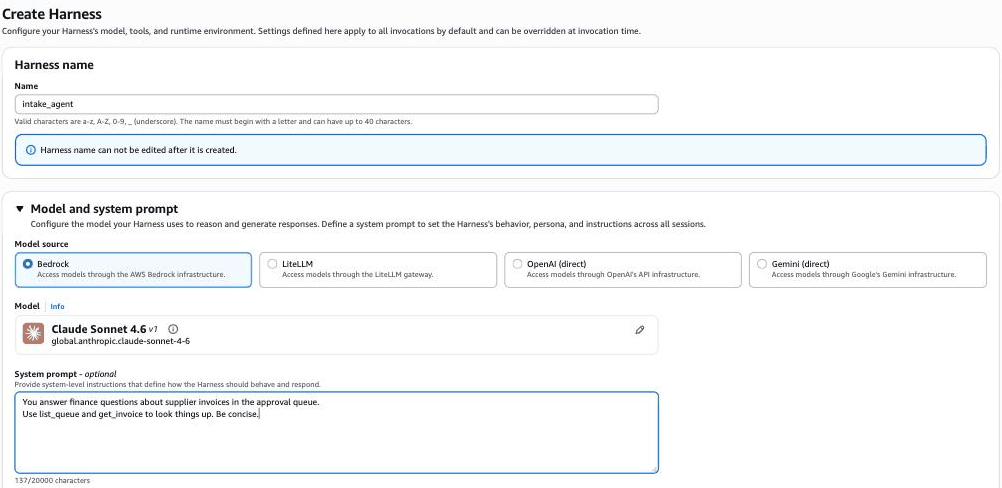
You've done this once, so it should feel familiar. The first prompt is short and trusting:
You answer finance questions about supplier invoices in the approval queue.
Use list_queue and get_invoice to look things up. Be concise.
The tools come from a Lambda function called agentcore-workshop-intake-api. get_invoice returns three things worth knowing about: extracted, which is what the scanner read; raw_total_text, the total exactly as printed on the invoice; and confidence, how sure the scanner was, from 0 to 1.
Start by copying the Lambda ARN. Run this in the code editor terminal and copy what it prints:
echo $INTAKE_API_ARN
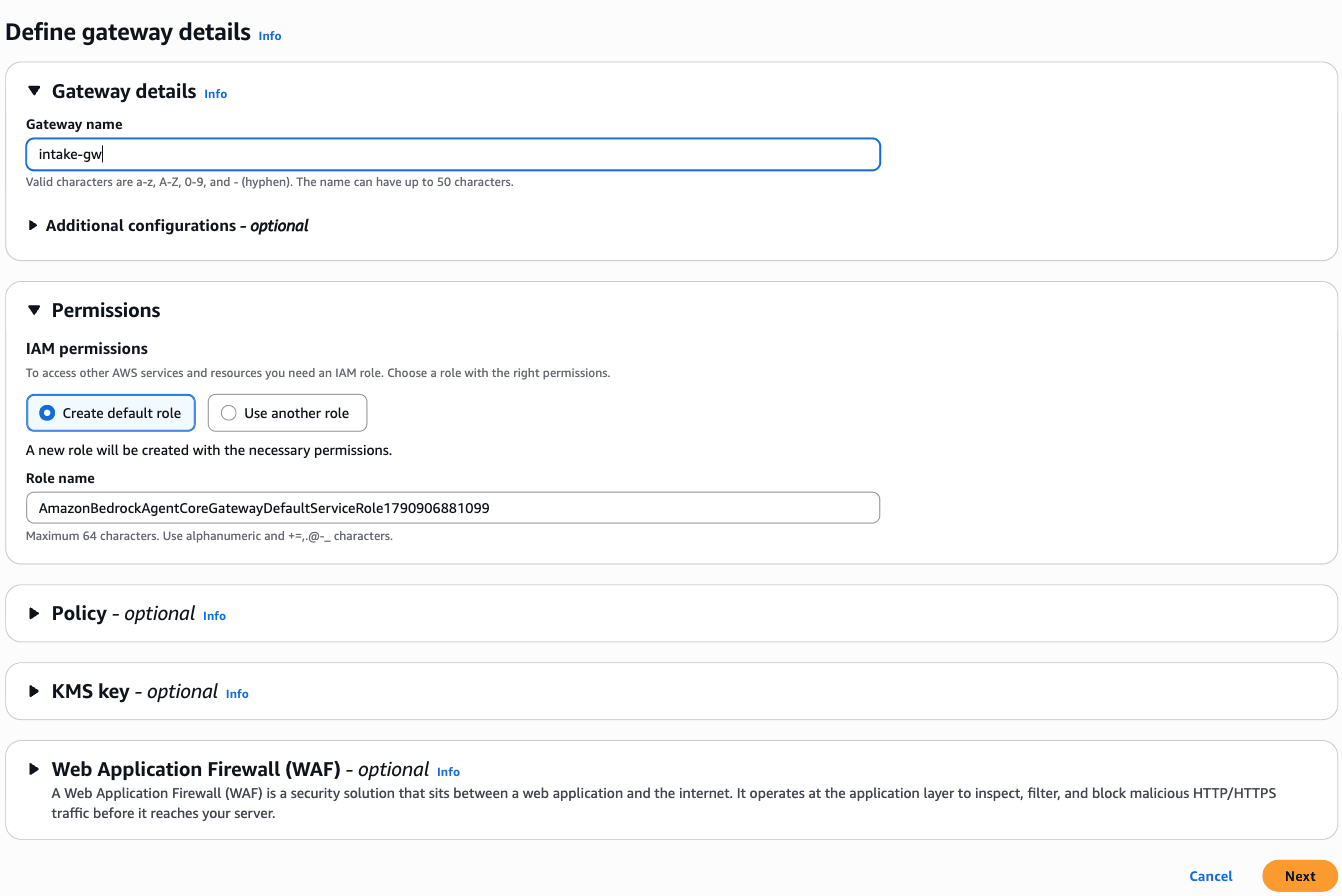
Choose Gateways, then Create Gateway. Step 1: replace the generated name with
intake-gwand keep Create default role. Choose Next.Screenshot: Define gateway details
Step 2: change Inbound Auth type to Use IAM permissions. Choose Next.
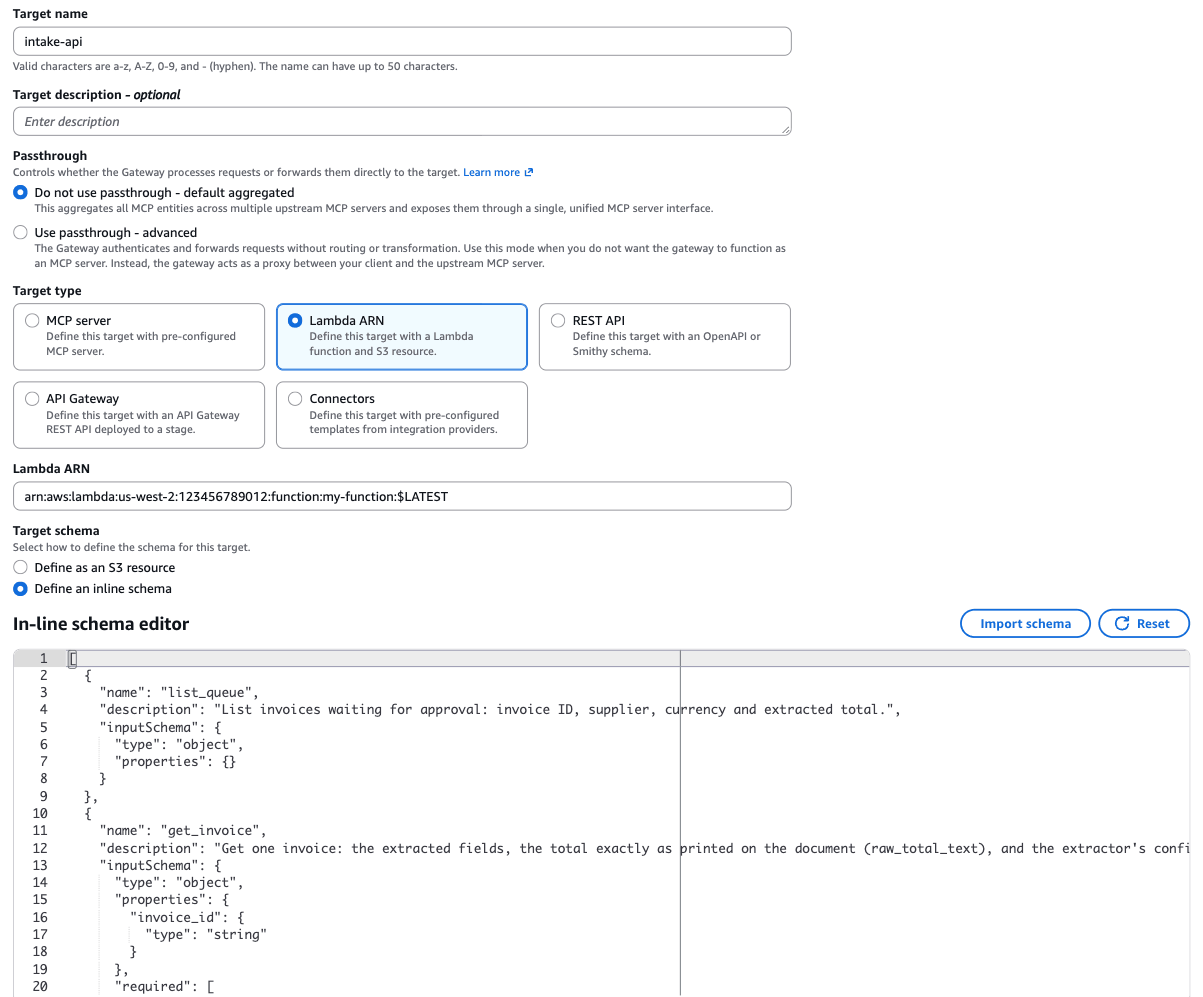
Step 3: leave MCP target as it is. Target name:
intake-api. Target type: Lambda ARN, and paste the ARN you copied. Target schema: Define an inline schema, then paste the tool list below. Leave Outbound Auth as IAM Role. Choose Next.Screenshot: Add targets, with the Intake tool list pasted
Step 4: review and create the gateway, then wait for it to show Ready.
Choose Harness, open the arrow on Quick create Harness, and choose Advanced create Harness. Name:
intake_agent. Keep Bedrock and Claude Sonnet 4.6, and replace the default system prompt with the prompt above.Screenshot: name, model and the first system prompt
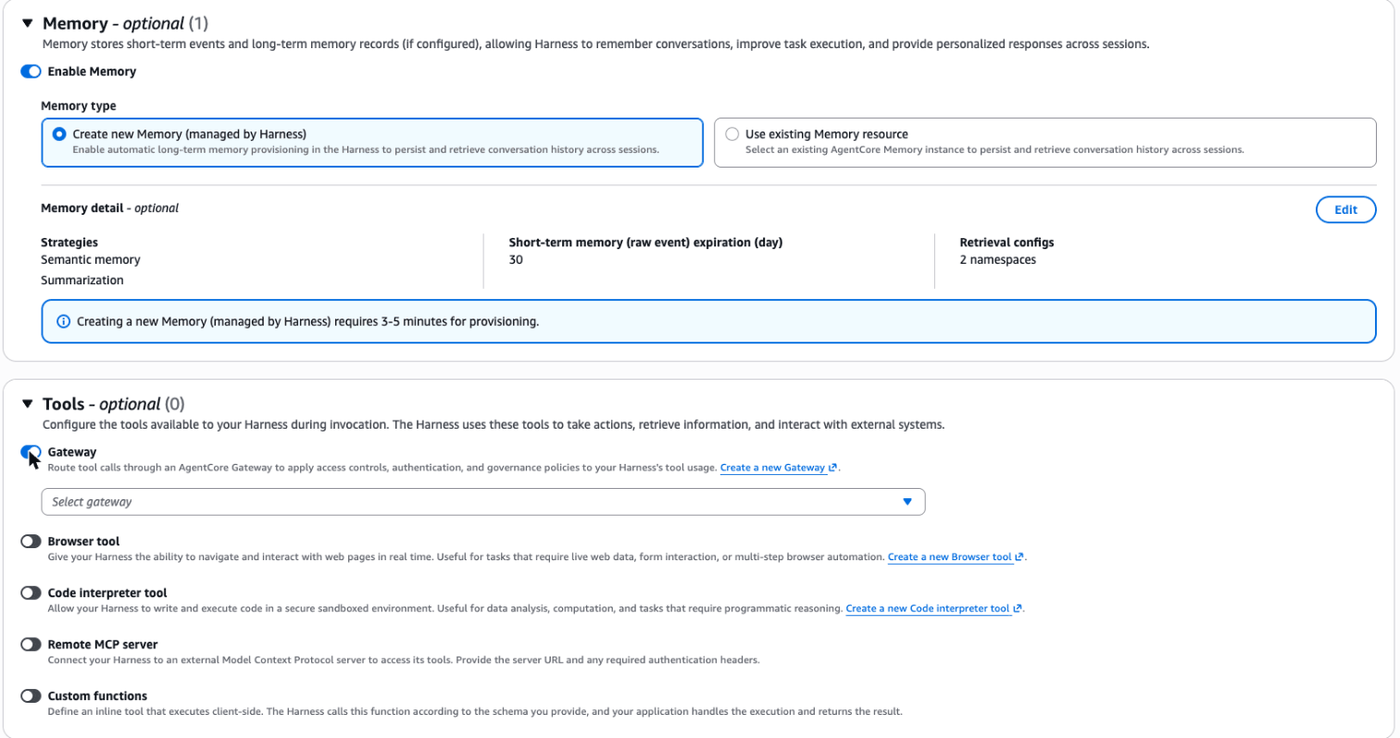
Leave managed memory on. Under Tools, switch on Gateway and select
intake-gw.Screenshot: memory and tools
Under Advanced configurations, Invocation limits, change Max Iterations to
20. Leave Create default role under Permissions.Screenshot: invocation limits
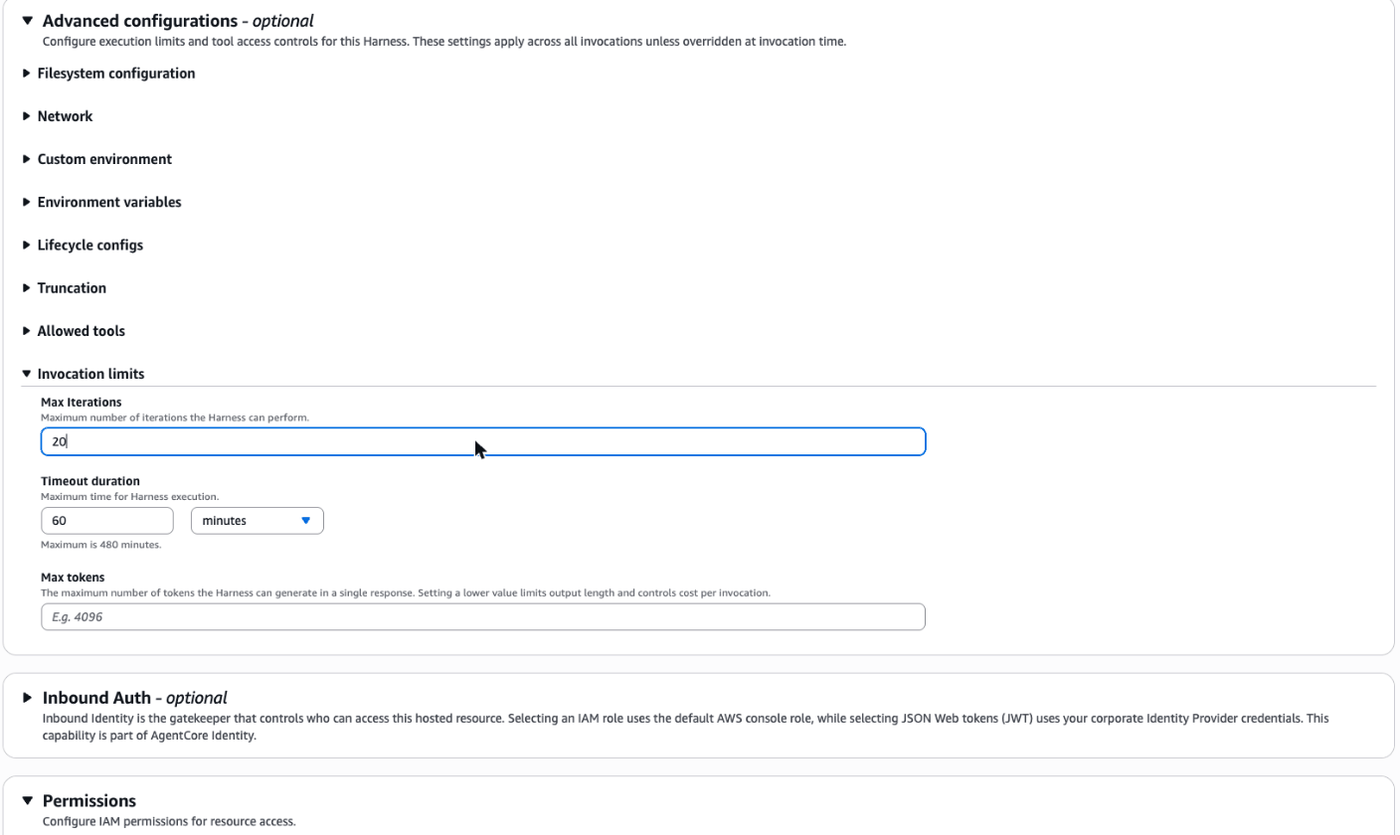
Choose Create Harness and wait for Ready. It takes three to five minutes while memory is provisioned.
Tool list to paste
[
  {
    "name": "list_queue",
    "description": "List invoices waiting for approval: invoice ID, supplier, currency and extracted total.",
    "inputSchema": { "type": "object", "properties": {} }
  },
  {
    "name": "get_invoice",
    "description": "Get one invoice: the extracted fields, the total exactly as printed on the document (raw_total_text), and the extractor's confidence from 0 to 1.",
    "inputSchema": {
      "type": "object",
      "properties": { "invoice_id": { "type": "string" } },
      "required": ["invoice_id"]
    }
  }
]
cd $WORKSHOP &&
agentcore create --project-name IntakeQA --no-agent &&
cd IntakeQA &&
agentcore add gateway --name intake-gw --authorizer-type AWS_IAM &&
agentcore add gateway-target \
  --type lambda-function-arn \
  --name intake-api \
  --lambda-arn "$INTAKE_API_ARN" \
  --tool-schema-file "$WORKSHOP/intake/tools.json" \
  --gateway intake-gw &&
agentcore deploy -y &&
agentcore add harness \
  --name intake_agent \
  --model-provider bedrock \
  --system-prompt "$(cat $WORKSHOP/intake/system-prompt-v1.md)" \
  --max-iterations 20 &&
agentcore add tool --harness intake_agent --type agentcore_gateway --name intake --gateway intake-gw &&
agentcore deploy -y
While it deploys, have a look at the files:
cat $WORKSHOP/intake/tools.json $WORKSHOP/intake/system-prompt-v1.md
Ask it some questions
Open Harness playground (under Test), select intake_agent and choose Test Harness. Ask each of these in its own new session, so each one is scored separately later:
Screenshot: Harness playground
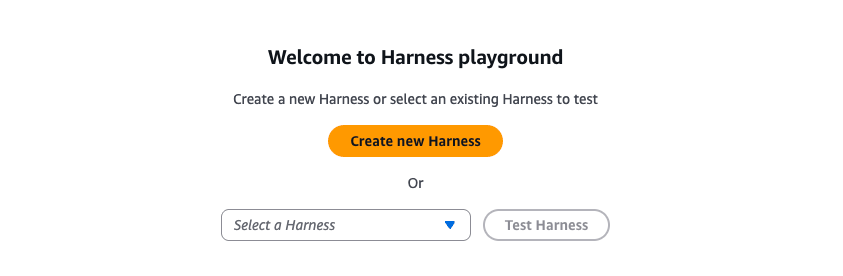
- What's the total value of invoices waiting for approval?
- Which invoices are over S$5,000?
- How much is the Lucky Star Print invoice?
- Is anything in the queue unusual?
cat $WORKSHOP/intake/questions.txt &&
$WORKSHOP/scripts/intake-ask.sh intake_agent $WORKSHOP/intake/questions.txt
The script asks each question in its own session and prints the answers.
Read the answers, especially the one about Lucky Star Print.
These sessions need five to ten minutes before Evaluations can score them. The next step fills that time, so carry straight on.
Write an evaluator that knows your business
What is AgentCore Evaluations, and why use it?
Ordinary tests check that code returns the right value. An agent's answers vary from run to run, so you need something that judges quality instead: was it correct, was it helpful, did it pick the right tool. Evaluations scores your agent's traces with a model acting as the judge (LLM-as-a-judge), using built-in evaluators for general qualities and custom ones you write for your own rules. You can score on demand, in a batch, or continuously on a sample of live traffic.
That's how you catch a regression after a prompt change before your users do, and compare versions with numbers rather than impressions.
Sources: AgentCore Evaluations
AgentCore Evaluations uses a model as a judge to score whole sessions, single turns or single tool calls. It comes with built-in evaluators for general qualities such as correctness, helpfulness and whether the agent picked the right tool. You'll use those in a moment. First, write one that checks the thing finance actually cares about:
You are reviewing an answer from a finance assistant about supplier invoices.

Conversation and tool results: {context}
Answer being reviewed: {assistant_turn}

Pass the answer only if both of these are true:
1. Every invoice amount the assistant states matches the amount printed on
   the invoice (raw_total_text in the tool results), not just the scanned
   figure (extracted.total).
2. Any invoice with a scan confidence below 0.9 is flagged for human review.

Fail it if either is false. If the answer states no invoice amounts, pass it.
{context} and {assistant_turn} are filled in by Evaluations for each turn it scores.
Choose Evaluations in the navigation pane, open the Custom evaluators tab, and choose Create custom evaluator.
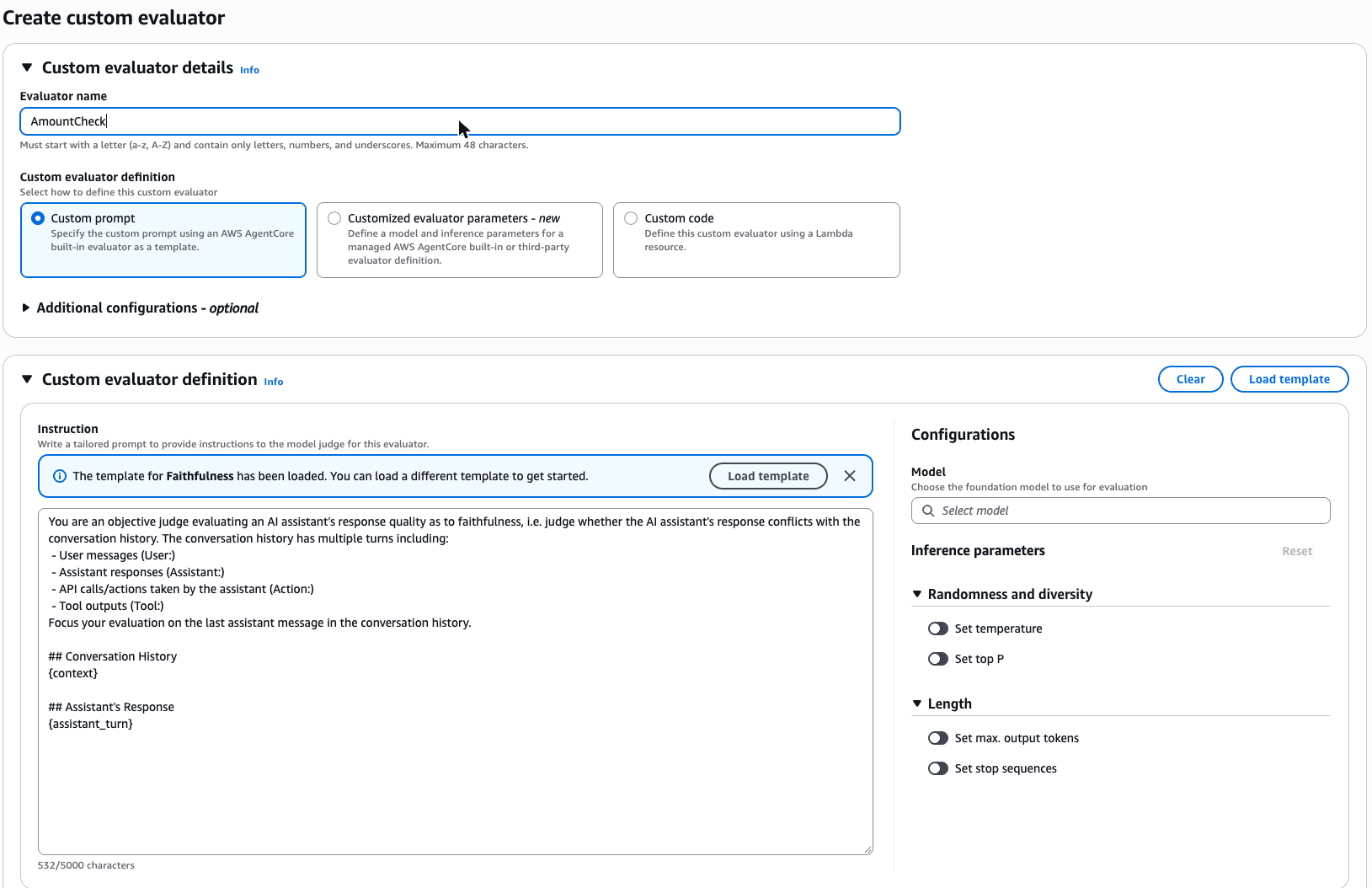
Evaluator name: replace the generated name with
AmountCheck. Leave the definition type as Custom prompt.The Instruction box is pre-filled with the Faithfulness template. Choose Clear, then paste the text above.
Model: search for Sonnet 4.6 and choose Global Anthropic Claude Sonnet 4.6.
Screenshot: evaluator name, prompt and model
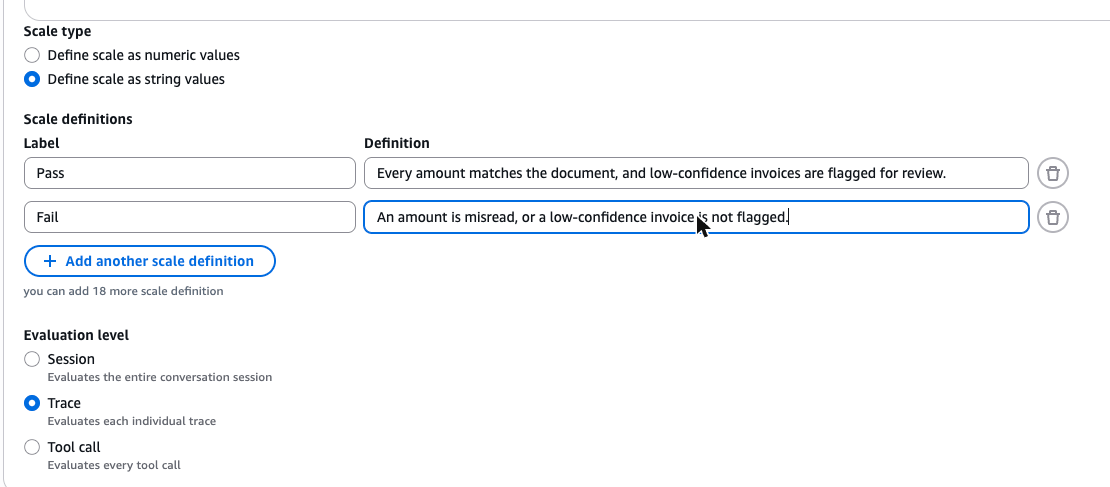
Scale type: choose Define scale as string values. Delete rows until two are left, then set them to Pass (Every amount matches the document, and low-confidence invoices are flagged for review.) and Fail (An amount is misread, or a low-confidence invoice is not flagged.).
Evaluation level: leave Trace selected.
Screenshot: scale and evaluation level
Choose Create custom evaluator.
This adds the evaluator to the IntakeQA project you created in "Deploy the finance agent". Check it's there first: ls $WORKSHOP/IntakeQA should list agentcore and app.
cd $WORKSHOP/IntakeQA &&
agentcore add evaluator \
  --name AmountCheck \
  --level TRACE \
  --rating-scale pass-fail \
  --model global.anthropic.claude-sonnet-4-6 \
  --instructions "$(cat $WORKSHOP/intake/evaluators/amount-check.txt)" &&
agentcore deploy -y
Score the answers
Now run the built-in evaluators and your own together against the sessions you created earlier.
In the console, a one-off evaluation over existing traces is called a batch evaluation.
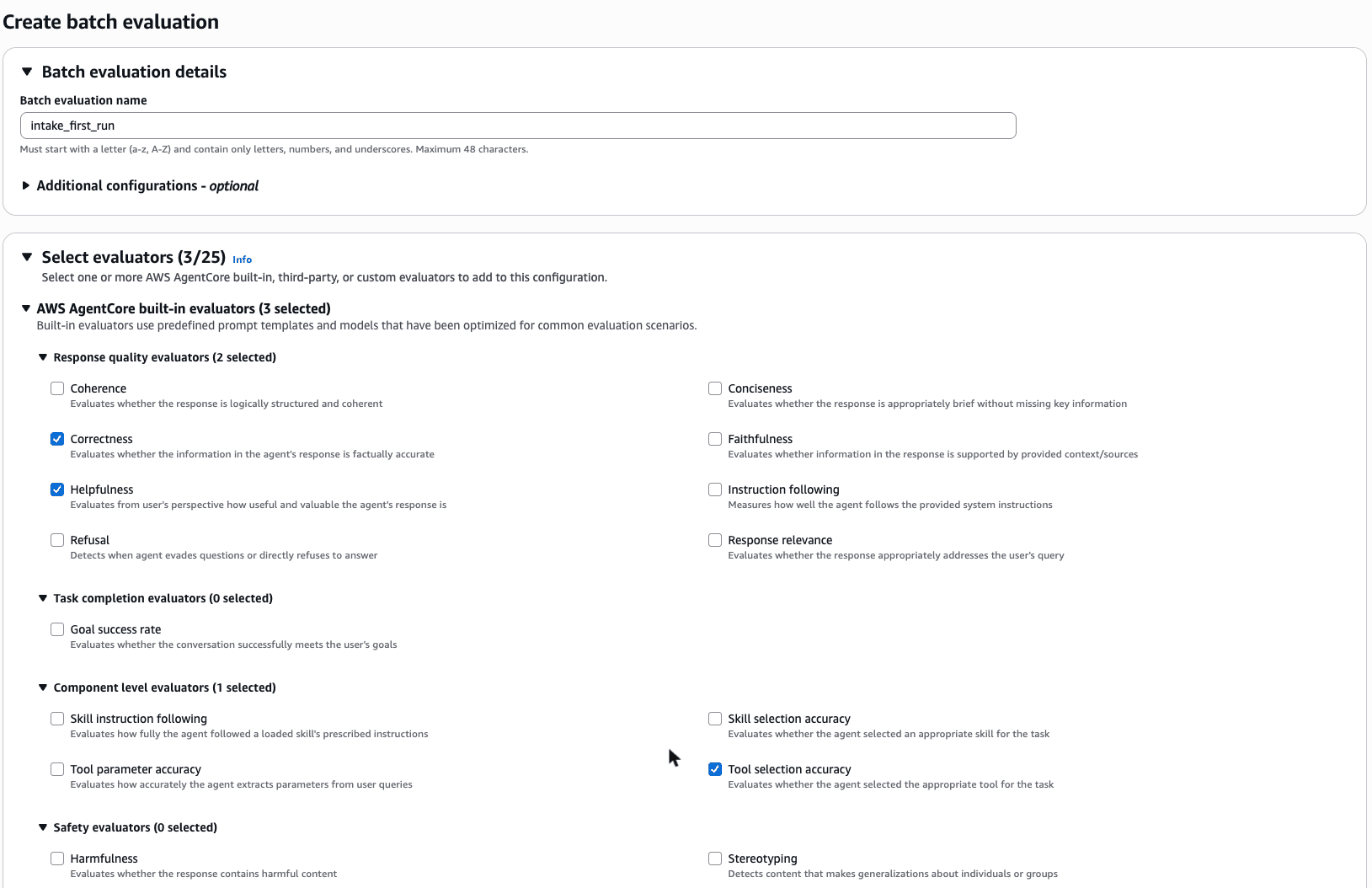
In Evaluations, open the Batch evaluation tab and choose Create batch evaluation.
Batch evaluation name:
intake_first_run.Under the built-in evaluators, tick Correctness and Helpfulness (response quality) and Tool selection accuracy (component level). Under Custom evaluators, tick AmountCheck.
Screenshot: choosing evaluators
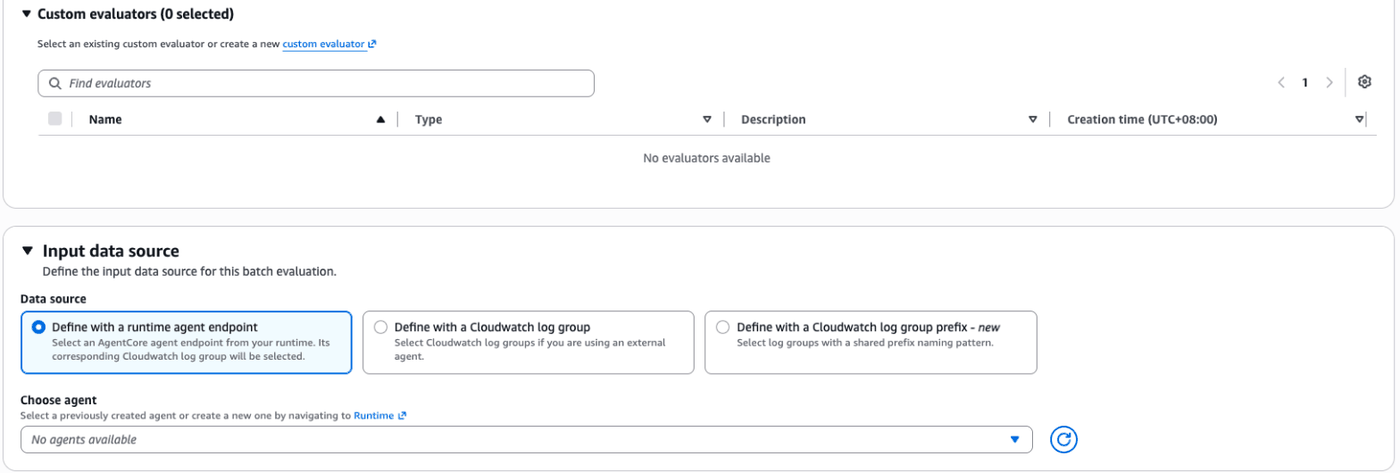
Input data source: leave Define with a runtime agent endpoint and choose
intake_agentunder Choose agent.Screenshot: input data source
Choose Create batch evaluation, then open it from the list to see the scores.
$WORKSHOP/scripts/eval-harness.sh intake_agent \
  Builtin.Correctness Builtin.Helpfulness Builtin.ToolSelectionAccuracy AmountCheck
agentcore run eval scores a Runtime, and a harness isn't one in the project's eyes (you'd see No runtimes defined in agentcore.json). Every harness runs on an AgentCore Runtime underneath, though, so the script looks up that Runtime and your evaluator's ARN, and runs the CLI's standalone mode: agentcore run eval --runtime-arn ... --evaluator-arn .... It runs one evaluator at a time, so if one can't finish yet, the others still give you scores.
If no sessions are found, the traces aren't ready yet. Give it two more minutes and try again.
Compare the scores for the Lucky Star Print answer. The built-in correctness judge probably passed it: it checks the answer against what the tools returned, and the tools said S$128,000, so repeating that counts as correct. A generic judge can't know your scanner is wrong. AmountCheck does, and it should fail that answer along with any answer that added the bad figure into a total.
Make the agent more careful
What is Code Interpreter, and why use it?
Language models predict text. They aren't calculators, and adding up a list of invoice totals in their head is exactly where mistakes creep in. Code Interpreter gives the agent a sandbox where it can write and run code (Python, JavaScript or TypeScript) and use the result. The sandbox is isolated, so running code the model wrote doesn't put your systems at risk, and it's built in: you switch it on as a tool, with nothing to host.
Sources: AgentCore Code Interpreter
The scanner fix belongs to engineering. You can still make the agent safer today with two config changes: give it a Code Interpreter so it does arithmetic in code, and tell it to check the raw text and the confidence score before it states a number. Here's the new prompt:
You answer finance questions about supplier invoices in the approval queue.
Use list_queue and get_invoice to look things up.

Before you state any invoice amount:
- Compare extracted.total (what the scanner read) with raw_total_text (what
  is printed on the invoice).
- If they don't match, or confidence is below 0.9, don't state the scanned
  amount as fact. Say what the invoice shows and mark it NEEDS HUMAN REVIEW.
- When you add up several invoices, use the code interpreter for the
  arithmetic and list the invoice IDs you included.

Keep answers short. Finance want the number, the invoice IDs, and anything
they need to check.
Open Harness, select
intake_agent, and choose Edit.Replace the system prompt with the one above.
Under Tools, switch on Code interpreter tool. A picker appears underneath: choose AgentCore Code Interpreter, the built-in one AWS provides. Leave the Gateway tool as it is.
Screenshot: Code interpreter tool switched on
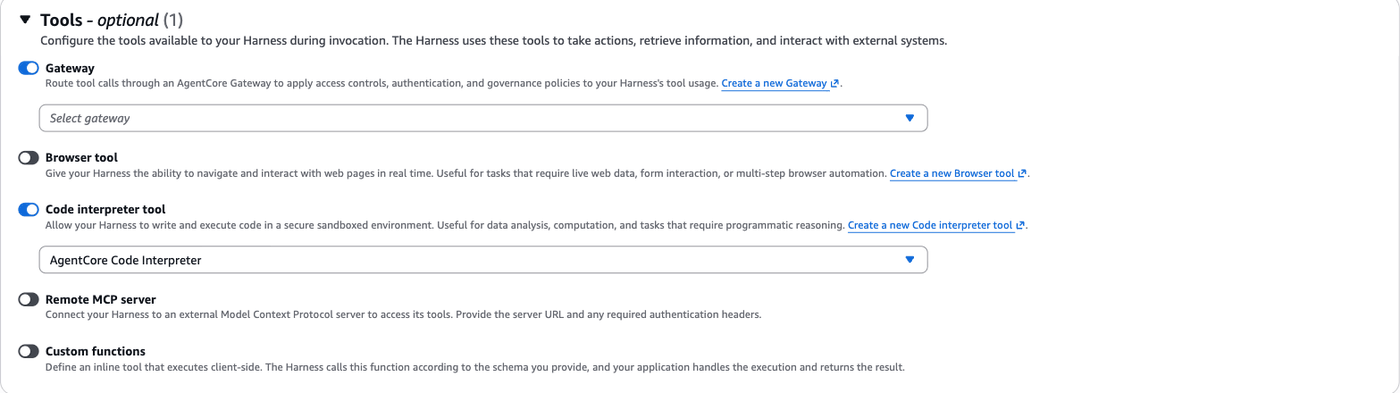
Save your changes.
cd $WORKSHOP/IntakeQA &&
agentcore add tool --harness intake_agent --type agentcore_code_interpreter --name calculator &&
$WORKSHOP/scripts/set-prompt.sh intake_agent $WORKSHOP/intake/system-prompt-v2.md &&
cat app/intake_agent/harness.json &&
agentcore deploy -y
set-prompt.sh writes the new prompt into systemPrompt in app/intake_agent/harness.json, because multi-line text in JSON is fiddly to edit by hand.
Saving creates version 2 of the harness. If it turned out to be worse, you could point an endpoint back at version 1.
Score live traffic from now on
To check the fix, set up online evaluation. It scores a sample of real sessions as they happen, so you don't have to run evaluations by hand. For the workshop, you'll score all of them.
In Evaluations, open the Evaluation configurations tab and choose Create evaluation configuration.
Evaluation name:
intake_live. Leave Enable this evaluation configuration once created ticked.Screenshot: evaluation configuration details
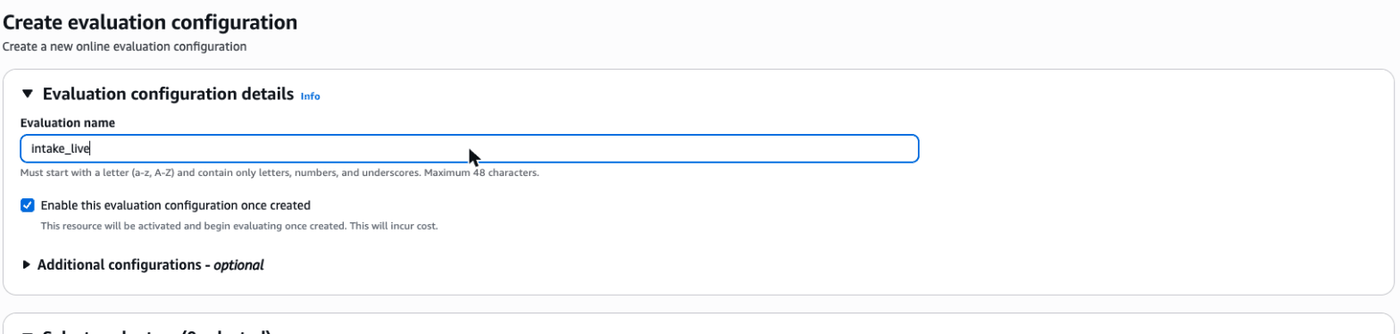
Evaluators: tick Correctness and, under Custom evaluators, AmountCheck.
Input data source: Define with an agent endpoint. Choose
intake_agentand itsDEFAULTendpoint.Sampling rate: change it from 10 to
100.Screenshot: data source and sampling
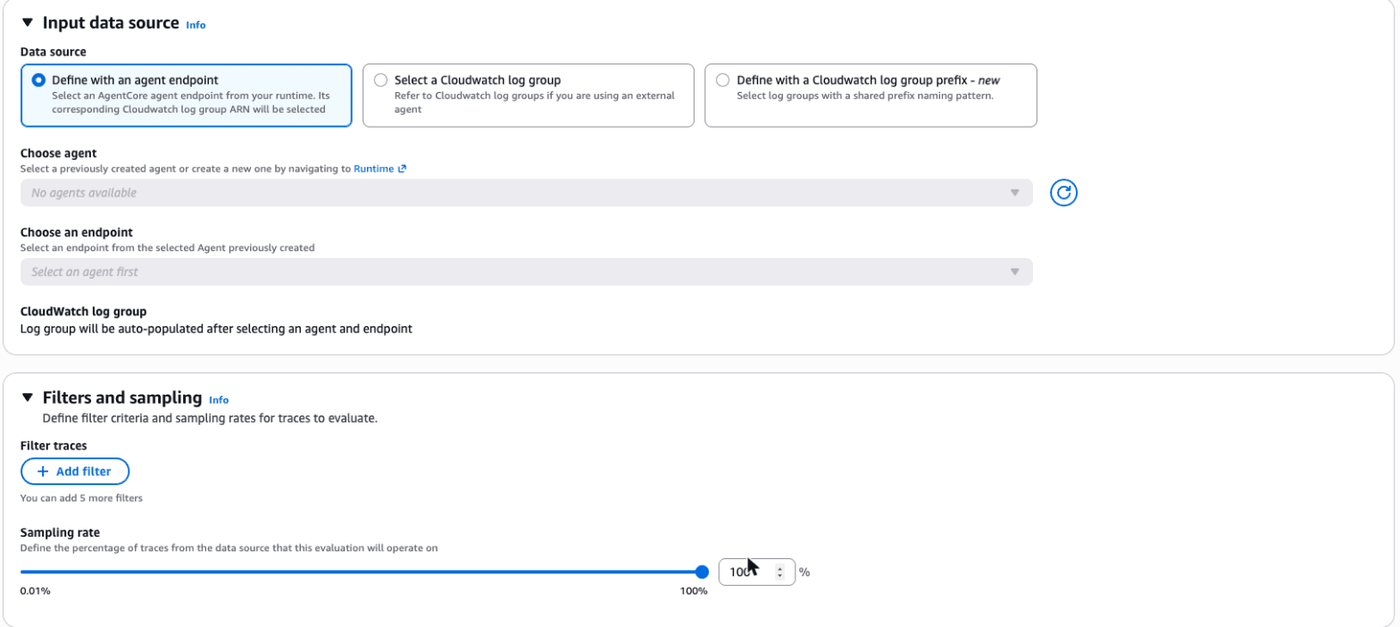
Leave Create default role under Permissions and choose Create evaluation configuration.
Back in the Harness playground, ask the same four questions again, each in a new session.
Use the Console steps for this one. Like run eval, agentcore add online-eval expects a Runtime defined in the project, and a harness isn't one, so the CLI can't set this up for a harness yet. The console form creates the configuration and its role for you; choose IntakeQA_intake_agent as the agent.
Then ask the questions again from the terminal:
$WORKSHOP/scripts/intake-ask.sh intake_agent $WORKSHOP/intake/questions.txt
Scores arrive five to ten minutes after each session, which is about when wrap-up starts. Don't wait for them here; the wrap-up page shows you where to find them. The Lucky Star Print answers should now flag the invoice for review and pass AmountCheck.
In production you'd sample far less, typically 1 to 5 percent of sessions, because every scored session is another model call.
Optional: ask AgentCore to suggest a better prompt
AgentCore can read your evaluation results and propose an improved system prompt. This one is a terminal command on either path:
cd $WORKSHOP &&
agentcore run recommendation \
  -t system-prompt \
  -r intake_agent \
  -e AmountCheck \
  --prompt-file $WORKSHOP/intake/system-prompt-v2.md
Treat the output as a suggestion to review. In production you'd A/B test it against the current prompt before switching.
Kiro corner (optional)
Ask Kiro: "Read intake/questions.txt and intake/tools.json. Write five more finance questions, in the same format, that would catch the scanner misreading an amount." Then try them in the Playground, or add them to the file and run intake-ask.sh again.
Done when
- You ran the built-in evaluators and can explain why they passed the wrong number.
AmountCheckfails the first Lucky Star Print answer.- After the version 2 prompt and the Code Interpreter, new answers flag the invoice for review.
- Online evaluation is switched on. You'll check its scores at the start of wrap-up.
Stuck?
Jump to the finished state. In the code editor terminal, run the command below. It works on either path, asks before replacing anything you built in the console, and deploys version 2 of the prompt and the evaluator. Set up online evaluation in the console afterwards.
$WORKSHOP/scripts/catch-up.sh intakecd: no such file or directory: .../IntakeQA(terminal). The project doesn't exist yet: either the first step's Terminal box didn't finish, or you built the agent in the console. If you built it in the console, use the Console tabs for the rest of the scenario. Otherwise run the Terminal box in "Deploy the finance agent" again, or jump ahead with$WORKSHOP/scripts/catch-up.sh intake.spanIds that do not exist in the provided data(terminal). A trace was still arriving when it was scored. This shows up most withBuiltin.ToolSelectionAccuracy, which scores single tool calls. Wait a few minutes and runeval-harness.shagain for just that evaluator.No sessions found when scoring. The traces aren't ready yet. Wait two minutes and try again, or widen the time range.
The evaluator won't save. The instructions must contain at least one placeholder for the level, such as
{context}. Check that you pasted the whole text.Online scores never appear. Check that the configuration is enabled. Results can take ten minutes to show up.